Good list:
http://www.insidecrm.com/features/101-web-site-fixes-031808/
Showing posts with label web programming. Show all posts
Showing posts with label web programming. Show all posts
Friday, September 25, 2009

Monday, December 10, 2007
Flash Video Streaming and IIS
One problem that plagues Flash video development is when it simply won't work in production the way it does in development. In later articles, I'll go further into depth on getting it to work at all in Flash, but this article is for you if your .swf is properly streaming video locally, but hits a brick wall when you try and run it out on production.
The obvious thing to check is that you have your .swf and .flv files published to your Web server along with correct path(s) in your Flash file. So, if you truly think everything is in order and still can't get it working, open up IIS and read on.
From your IIS panel, Right+Click your Web site and select "Properties." Choose the "HTTP Headers" tab and look in the "MIME mapping" section for the "File Types" button.
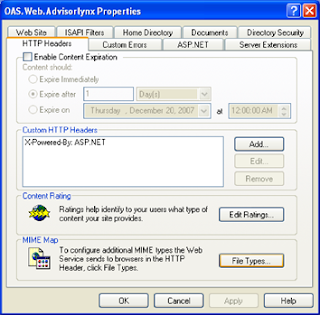
From the "File Types" window you'll need to add a New Type, where you'll have two fields to enter. Carefully enter the following:
Associated extension = ".FLV"
Content type (MIME) = "flv-application/octet-stream"
Hit "OK" and your results will appear in the Registered file types window, like this:

Of course there are many reasons for Flash Video projects to fail, but I found this one particularly elusive, thus worth mentioning. Please feel free to post additional problems/solutions and I'll expand this tutorial further.
The obvious thing to check is that you have your .swf and .flv files published to your Web server along with correct path(s) in your Flash file. So, if you truly think everything is in order and still can't get it working, open up IIS and read on.
From your IIS panel, Right+Click your Web site and select "Properties." Choose the "HTTP Headers" tab and look in the "MIME mapping" section for the "File Types" button.

From the "File Types" window you'll need to add a New Type, where you'll have two fields to enter. Carefully enter the following:
Associated extension = ".FLV"
Content type (MIME) = "flv-application/octet-stream"
Hit "OK" and your results will appear in the Registered file types window, like this:

Of course there are many reasons for Flash Video projects to fail, but I found this one particularly elusive, thus worth mentioning. Please feel free to post additional problems/solutions and I'll expand this tutorial further.
Tuesday, October 23, 2007
Rounded Corners with Nifty Javascript
I can't give this script a thumbs up or down just yet, but I'll be implementing it on an upcoming project, then I'll provide a review. I have tried a few other scripts that work well with prototype and rico, but when combined with asp.NET pages, they run into problems. Hopefully this one's different... if so, I'll update this post with the good news and some samples. In the mean time, visit their site:
http://www.html.it/articoli/nifty/index.html
Enjoy! And feel free to post your success story (giving the original authors full props, of course).
http://www.html.it/articoli/nifty/index.html
Enjoy! And feel free to post your success story (giving the original authors full props, of course).
Sunday, September 9, 2007
Setting image swap on your asp.NET Image Controls - Part 2
In part 1 of this article series, I showed you how to set an image rollover in your ASP.NET (2.0) app with asp.NET HyperLink and Image controls. It's a code behind solution that writes all the javascript for you, making you much more likely to use image rollovers, rather than make them "phase two" of any given project.
As promised, this article shows you how to make it more functional by wrapping the method in a class which is reusable and accessible across your asp.NET application(s).
I'll set up a very simple class in my namespace: Web.Classes.
namespace Web.Classes
{
public class Common
{
public Common() {
}
public static void setMouseOver(HyperLink lnkControl, System.Web.UI.WebControls.Image imgControl, string imgPath, string imgPathOver)
{
lnkControl.Attributes.Add("onmouseover", "document.getElementById('" + imgControl.ClientID + "').src='" + imgPathOver + "';");
lnkControl.Attributes.Add("onmouseout", "document.getElementById('" + imgControl.ClientID + "').src='" + imgPath + "';");
}
}
}
One thing you might notice (if for no other reason than it's highlighted in orange), is that I fully qualified the System.Web.UI.WebControls.Image which shows up as an argument in my method. I've noticed that even when I declare the WebControls Namespace at the top, the compiler can potentially still throw an error due to a conflict with System.Drawing.Image. For simplicity, I didn't use a shorthand in my using statement to solve this, but that's certainly a good option.
Finally, instead of reinventing the wheel on each codebehind, it is not as simple as calling Common.setMouseOver() and providing the appropriate arguments like this:
if(!Page.IsPostBack)
{
Common.setMouseOver(lnkLink1, imgLink1, "/Images/my_image.png", "/Images/my_image_over.png");
}
My intent with this brief series of articles was to show a simple way of implementing rollover images on your asp.NET pages.
As promised, this article shows you how to make it more functional by wrapping the method in a class which is reusable and accessible across your asp.NET application(s).
I'll set up a very simple class in my namespace: Web.Classes.
namespace Web.Classes
{
public class Common
{
public Common() {
}
public static void setMouseOver(HyperLink lnkControl, System.Web.UI.WebControls.Image imgControl, string imgPath, string imgPathOver)
{
lnkControl.Attributes.Add("onmouseover", "document.getElementById('" + imgControl.ClientID + "').src='" + imgPathOver + "';");
lnkControl.Attributes.Add("onmouseout", "document.getElementById('" + imgControl.ClientID + "').src='" + imgPath + "';");
}
}
}
One thing you might notice (if for no other reason than it's highlighted in orange), is that I fully qualified the System.Web.UI.WebControls.Image which shows up as an argument in my method. I've noticed that even when I declare the WebControls Namespace at the top, the compiler can potentially still throw an error due to a conflict with System.Drawing.Image. For simplicity, I didn't use a shorthand in my using statement to solve this, but that's certainly a good option.
Finally, instead of reinventing the wheel on each codebehind, it is not as simple as calling Common.setMouseOver() and providing the appropriate arguments like this:
if(!Page.IsPostBack)
{
Common.setMouseOver(lnkLink1, imgLink1, "/Images/my_image.png", "/Images/my_image_over.png");
}
My intent with this brief series of articles was to show a simple way of implementing rollover images on your asp.NET pages.
Thursday, September 6, 2007
Setting image swap on your asp.NET Image Controls
In this article, I wanted to archive a clean and quick way of adding mouse rollover image swapping to your asp.net (2.0) forms. Before you wonder why you wasted the last 20 seconds of your life, I'll show you in part 2 how to wrap it up into a class to make it more object oriented by developing a reusable mouse rollover control.
It would be really great if the .net HyperLink control simply had an ImageRolloverUrl property, to go along with its ImageUrl property (maybe in 3.0?). At that point, we'd be done, and you'd be back to reading about my cat (I don't own a cat, but somehow writing about your black lab seems even lamer).
Moving on, since we'll have to wrap our HyperLink control around an Image control, you'll notice I don't even set the ImageUrl property of HyperLink. Therefore, it will look like this:
in the code behind:
string imgPath = "~/images/yourimage.png";
string imgPathOver = "~/images/yourimage_over.png";
lnkControl.Attributes.Add("onmouseover", "document.getElementById('" + imgControl.ClientID + "').src='" + imgPathOver + "';");
lnkControl.Attributes.Add("onmouseout", "document.getElementById('" + imgControl.ClientID + "').src='" + imgPath + "';");
So, pretty simle in all, though it's still just a little more code than a developer might be willing to write for each image link. That's why I'll show you in part 2 how I chose to wrap this in a Class for reusibility across your application(s).
It would be really great if the .net HyperLink control simply had an ImageRolloverUrl property, to go along with its ImageUrl property (maybe in 3.0?). At that point, we'd be done, and you'd be back to reading about my cat (I don't own a cat, but somehow writing about your black lab seems even lamer).
Moving on, since we'll have to wrap our HyperLink control around an Image control, you'll notice I don't even set the ImageUrl property of HyperLink. Therefore, it will look like this:
<asp:HyperLink id="lnkPage1" runat="server" >
<asp:Image id="imgMyImage" runat="server" ImageUrl="~/App_Themes/Default/Images/my_image.png" />
</asp:HyperLink>
in the code behind:
string imgPath = "~/images/yourimage.png";
string imgPathOver = "~/images/yourimage_over.png";
lnkControl.Attributes.Add("onmouseover", "document.getElementById('" + imgControl.ClientID + "').src='" + imgPathOver + "';");
lnkControl.Attributes.Add("onmouseout", "document.getElementById('" + imgControl.ClientID + "').src='" + imgPath + "';");
So, pretty simle in all, though it's still just a little more code than a developer might be willing to write for each image link. That's why I'll show you in part 2 how I chose to wrap this in a Class for reusibility across your application(s).
Subscribe to:
Posts (Atom)


 Posts
Posts

